
Ouch Browser Documentation
Welcome to the Ouch Browser documentation.
Command Palette
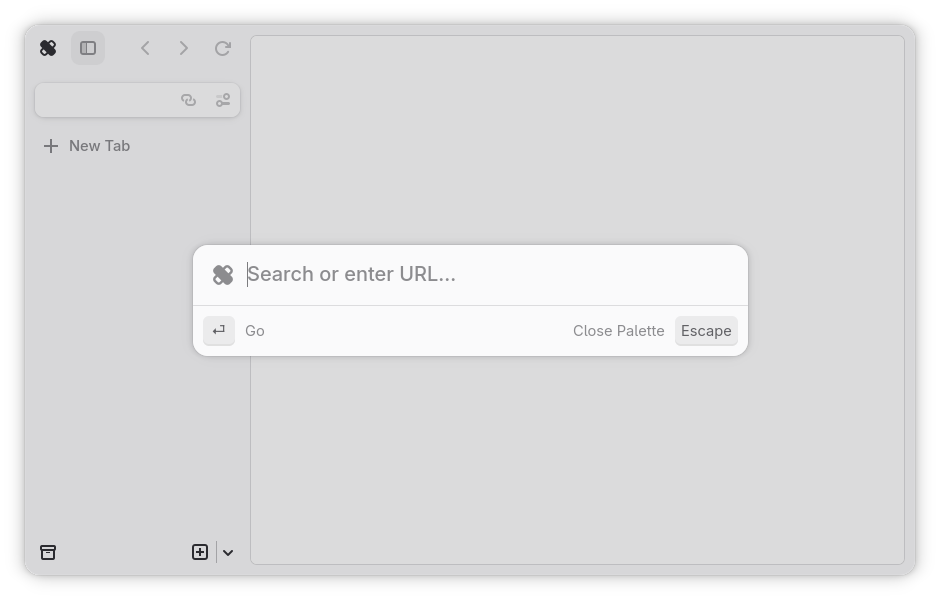
The command palette is the main way of getting around Ouch Browser, and the first element displayed on startup. Think of it as the search bar of a conventional web browser, but contains more features. Command palette includes support for !bangs and search autocompletion out of box, which can both be disabled inside preferences. The command palette can be summoned using Ctrl + T for a new tab, Ctrl + L or Alt + D to change the current tab’s URL (considered the de-facto main way to summon the palette).
!bangs
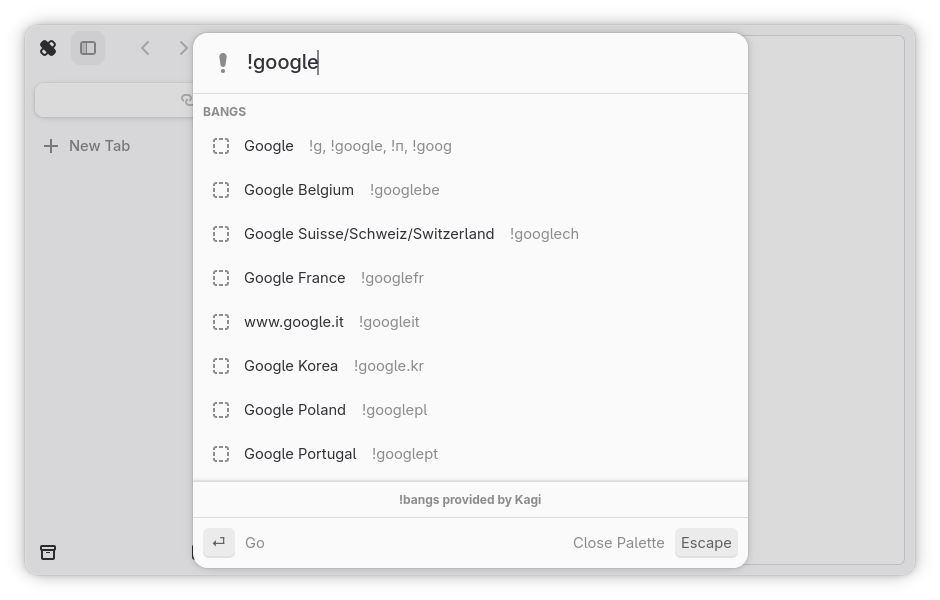
!bangs help you search websites that are not conventional search engines. Autocompletion is possible via preferences, but may use an significant amount of resources due to the large amount of !bangs stored.
Search
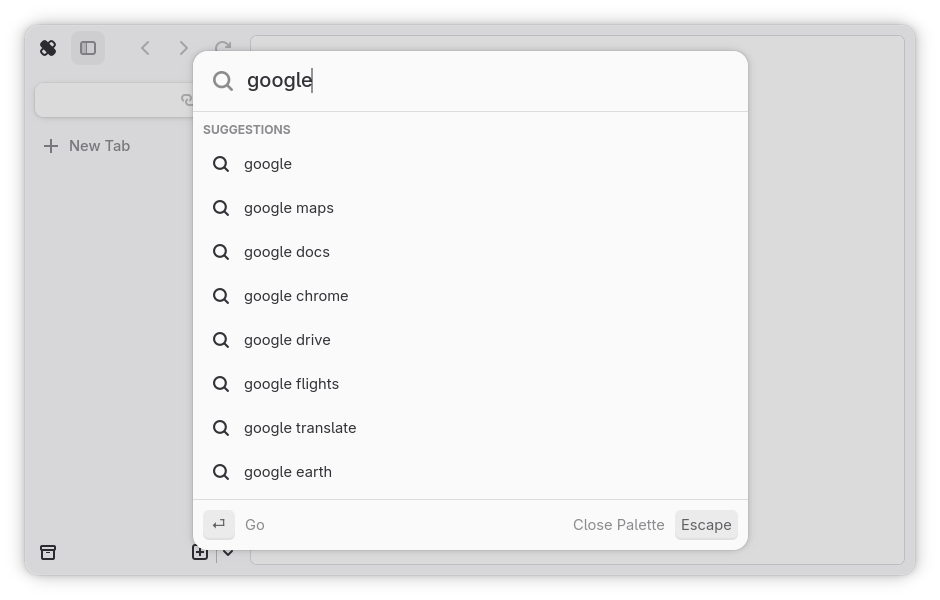
Search allows you to search the internet using the search engine selected in preferences. Due to technical limitations, the command palette only fetches autocomplete results from DuckDuckGo. Autocompletion can be disabled in preferences.
Rooms Overview
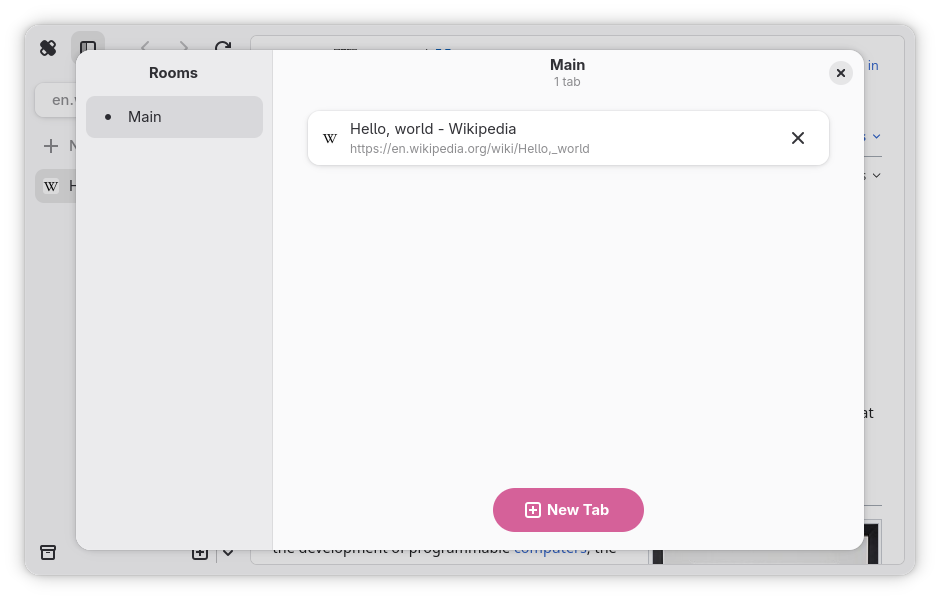
The rooms overview is a dialog that displays all rooms and tabs inside them. This is used as the main mode of tab navigation on mobile, but is also encouraged for desktop use as well. It can be summoned using Ctrl + Shift + \, or the “View All Tabs” button located inside the main menu on desktop, or the tabs button on mobile.
Peek Tabs
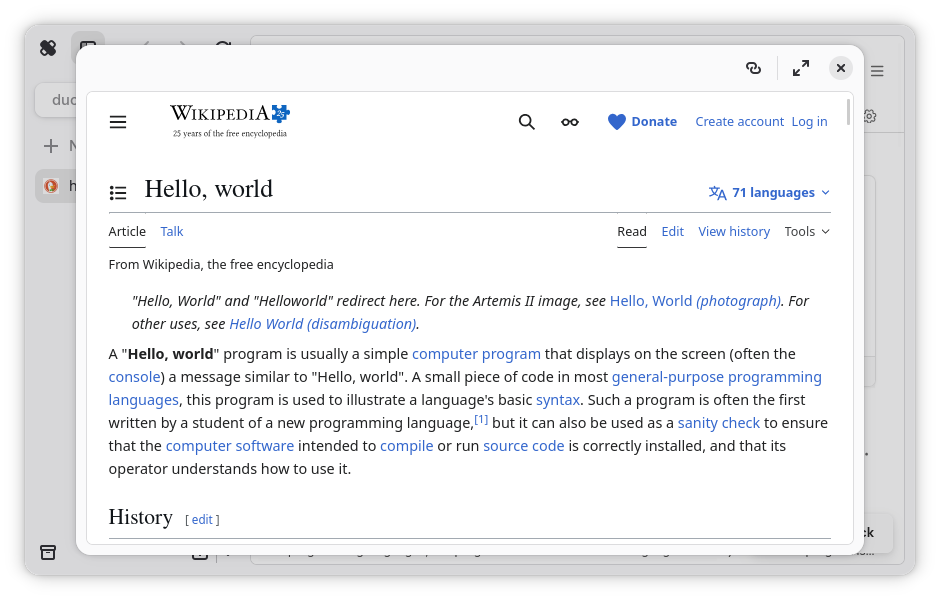
An peek tab is a temporary tab that is used for quick browsing, which is what peek tabs is mostly designed after. Due to being a “simple tab,” you cannot navigate backward or forward, refresh, or change the URL. If you would like to do this, you will need to expand the tab into the main view. This will not make you lose your scroll position or your progress.
It can be summoned holding down the selected peek tab trigger, and clicking on a hyperlink. An alternative way is to right-click on the hyperlink, and select “Open in Peek Tab,” which may be preferred for users of touchscreens.
Preferences
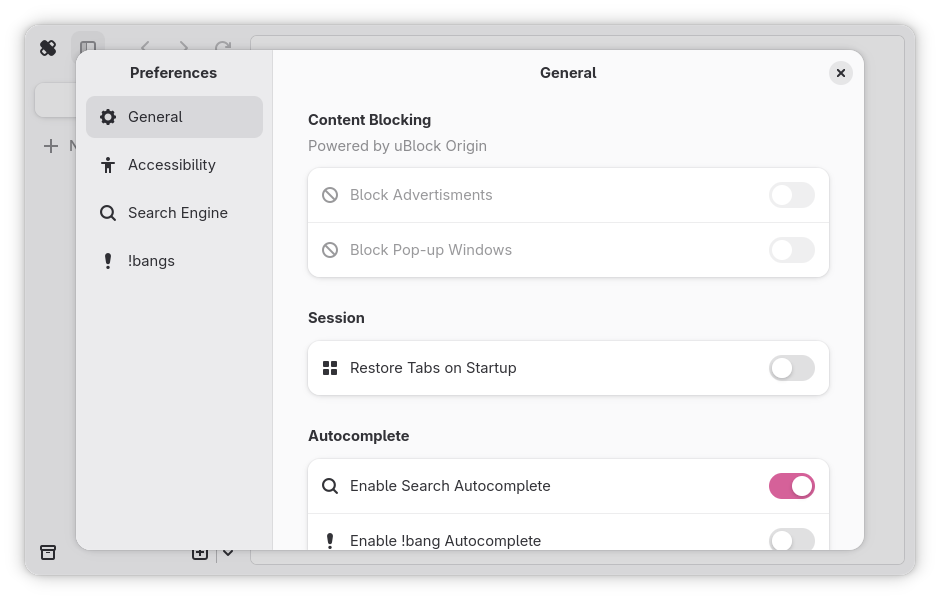
The preferences dialog can be used to customize Ouch Browser to your liking. It can be summoned using Ctrl + ,.
General
General Ouch Browser preferences that are too loose to be categorized.
Content Blocking
Important
None of these preferences are currently implemented. This only reflects the intentions of how these will be implemented.
Note
As Ouch Browser does not support WebExtensions yet, uBlock Origin is not actually used, but instead uBlock Origin filters.
This configures how Ouch Browser blocks certain elements of a webpage, such as ads.
Block Advertisments
gsettings Key: TBD
Type: Boolean
Default:
true
This setting determines whether advertisments will be blocked via an uBlock Origin filter.
Block Pop-up Windows
gsettings Key: TBD
Type: Boolean
Default:
true
This setting determines whether pop-up windows will be blocked.
Session
Important
None of these preferences are currently implemented. This only reflects the intentions of how these will be implemented.
This configures how Ouch Browser saves and/or restores the session state.
Restore Tabs on Startup
gsettings Key: TBD
Type: Boolean
Default:
false
Note
While there is no gsettings key to restore tabs of the current session, there is the gsettings key
restore-tabsthat opens a specific set of URLs upon startup
This setting determines whether the tabs of the current session will be saved for recreation upon next startup.
Autocomplete
This configures how autocompletion works inside the command palette.
Enable Search Autocomplete
gsettings Key:
search-autocomplete-enabledType: Boolean
Default:
true
This setting determines whether searching inside the command palette shows autocompletion results. This will send your search query to DuckDuckGo for completion.
Enable !bang Autocomplete
gsettings Key:
bang-autocomplete-enabledType: Boolean
Default:
false
This setting determines whether entering a !bang inside the command palette shows autocompletion results. The autocompletion process happens locally, therefore utilizes more resources.
Peek Tabs
This configures how peek tabs work.
Peek Trigger
gsettings Key:
peek-triggerType: Enumeration
Enumeration ID:
site.srht.shrimple.OuchBrowser.PEEK_TRIGGEREnumeration Nicknames:
"shift","ctrl","alt"Default:
"shift"
This setting determines what key will be used to trigger a new peek tab combined with clicking on a hyperlink.
Developer
This configures developer extras. These mostly pertain to WebKit and not Ouch Browser in itself.
Enable Developer Tools
gsettings Key:
devtools-enabledType: Boolean
Default:
false
This setting determines whether Web Inspector is enabled.
Accessibility
Prefrences that pertain to ease of use in Ouch Browser. Accessibility is an long-term effort of Ouch Browser, so more preferences will appear here over time.